THATGUYABHISHEK
navigation

Excel Charting : AI-Powered Chart Design Recommendations

notion image

Introduction

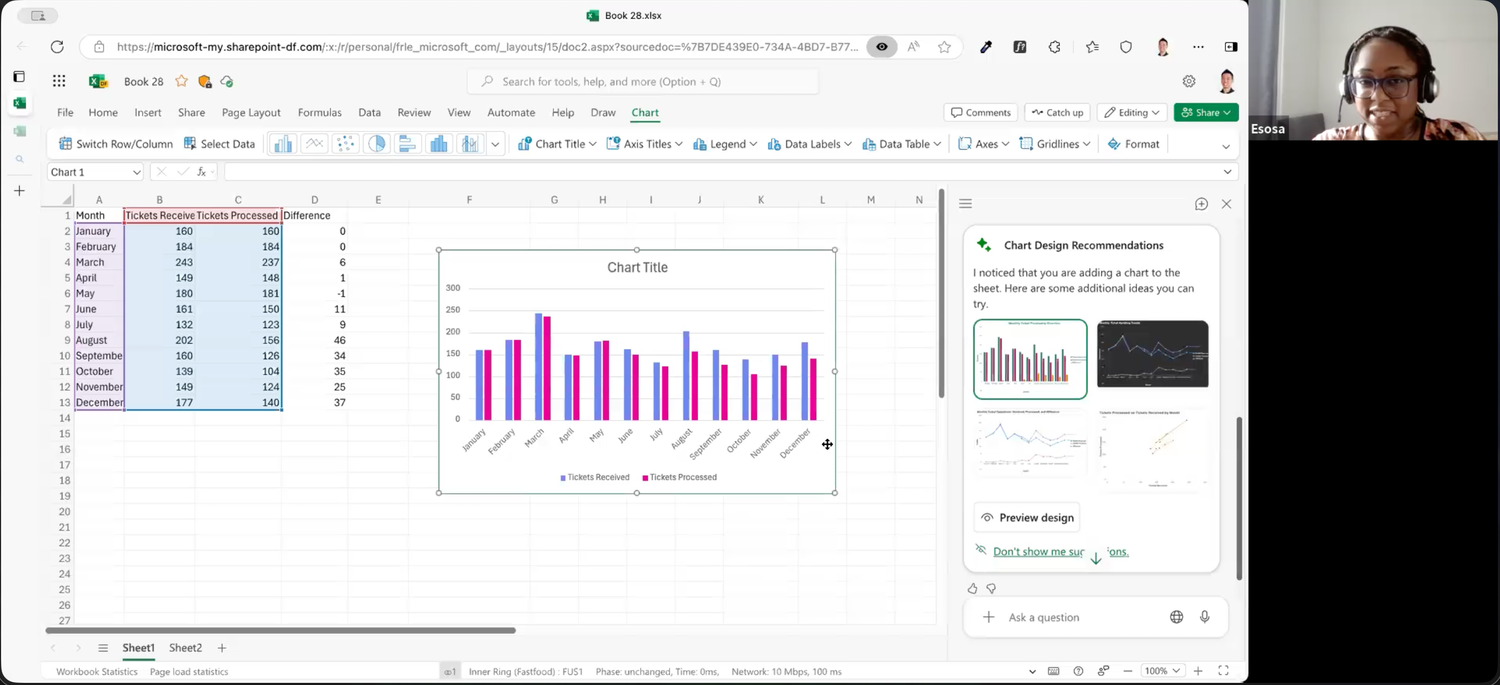
Creating charts is easy. Making them GOOD is hard. Users struggled with chart type selection, styling decisions, and best practices — resulting in suboptimal visualizations even when data was correct. As Lead Designer for Copilot Chart Design Recommendations, I designed an LLM-powered system that analyzes data shape and user intent to suggest optimal chart configurations. This bridges the gap between 'chart exists' and 'chart communicates effectively,' democratizing data visualization expertise for 400M users.


Results Overview
100% Execution Success
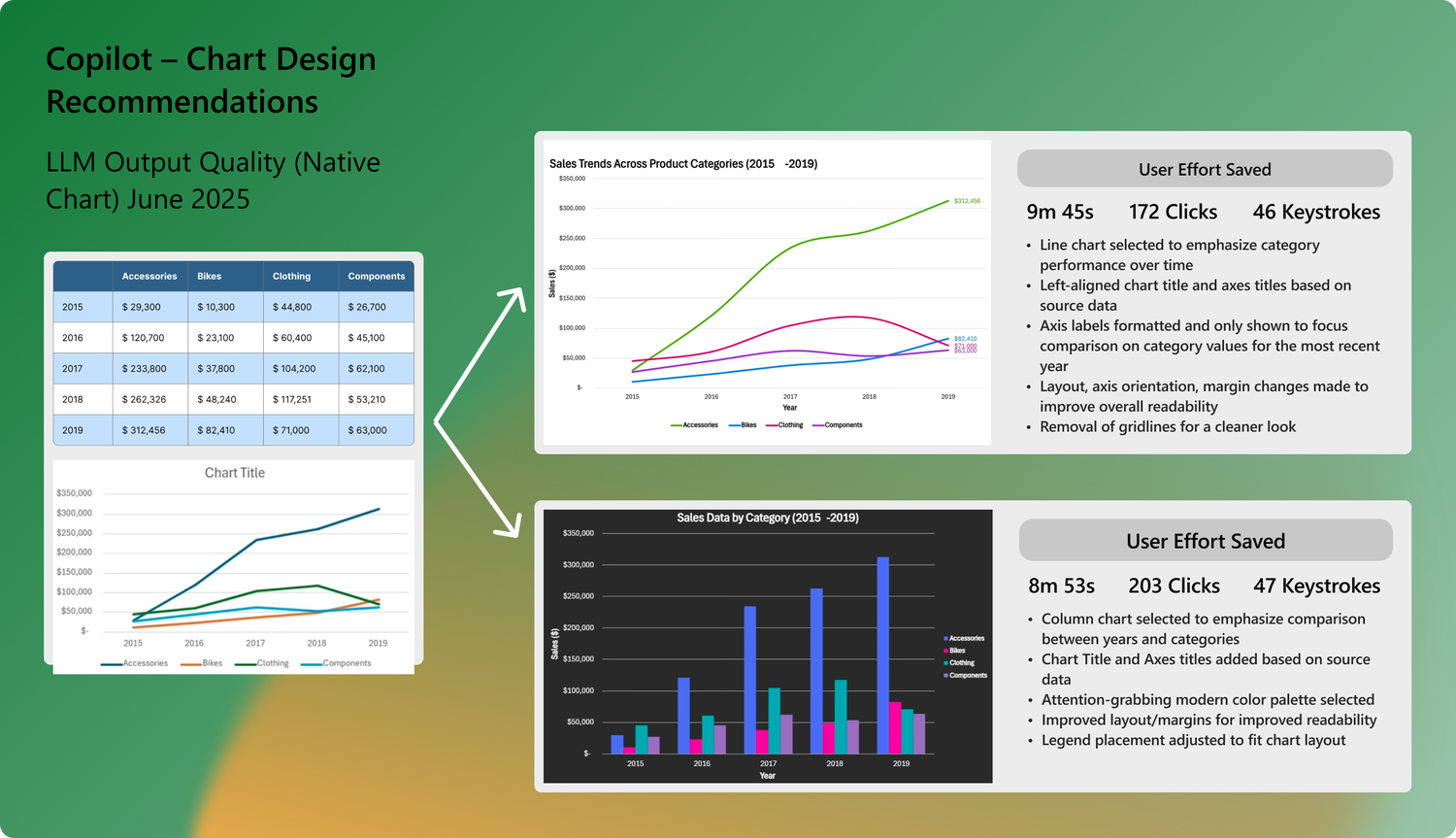
9 mins User Effort Saved
172 Clicks Eliminated
FY26 H1 Shipping Timeline

The Problem: The Chart Design Expertise Gap

What Users Were Struggling With
"I created a chart but don't know if I picked the right type." — Intermediate User
"It looks boring. How do I make it presentation-ready?" — Enterprise Analyst
"I spend hours tweaking charts to look professional." — Power User
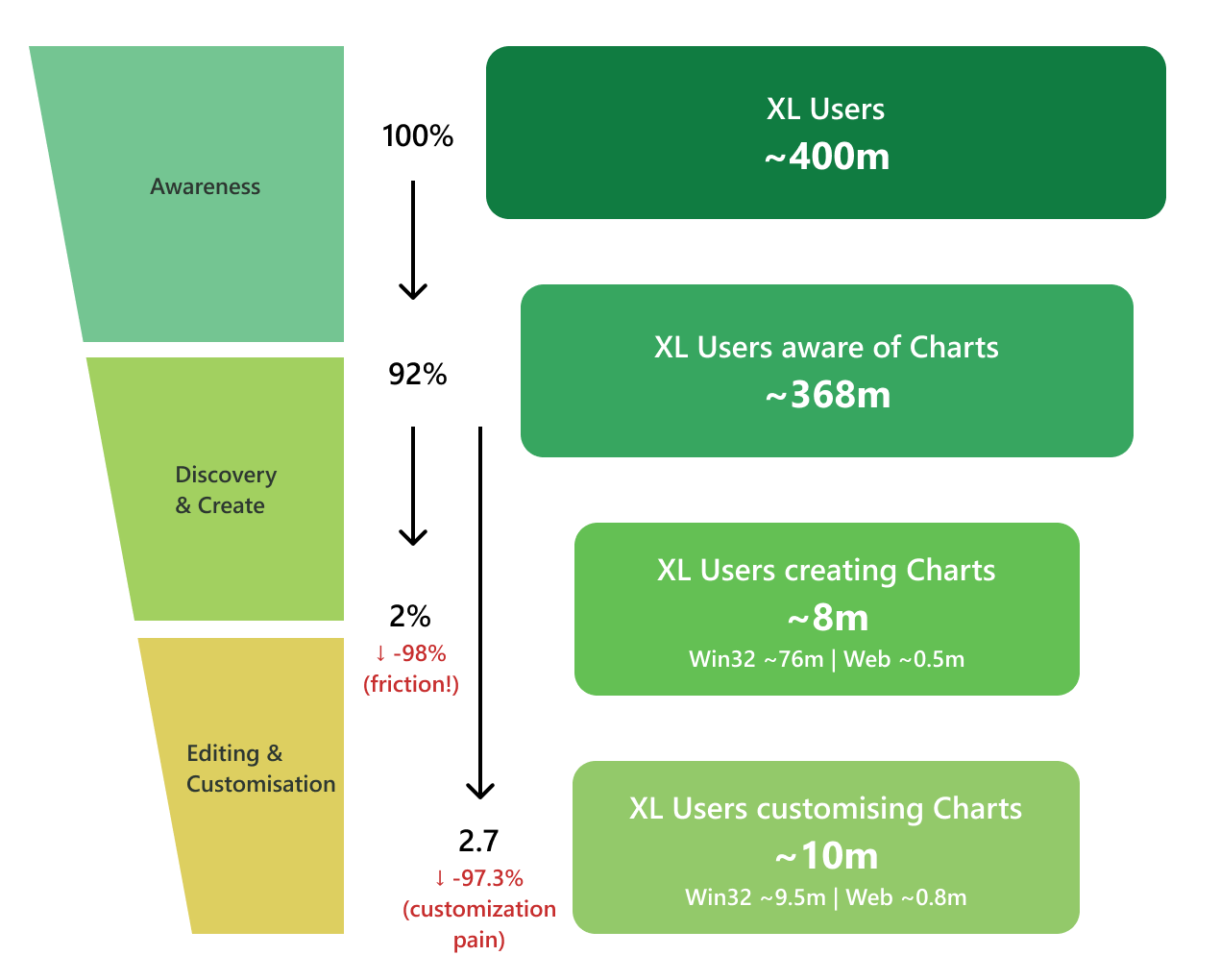
The pattern was clear: Users could INSERT charts (thanks to our P0 improvements), but they couldn't optimize them.
Pain Point
User Behavior
Business Impact
Chart Type Uncertainty
Try multiple types, delete, start over. 5-10 minute cycle.
Wasted time, user frustration, suboptimal final choices
Styling Paralysis
Don't know which formatting options matter. Either over-style or under-style.
Charts look unprofessional or cluttered
Best Practice Ignorance
Unaware of data viz principles (e.g., start axis at zero, use direct labels)
Misleading visuals, poor communication
CRITICAL GAP: Competitors democratized design expertise. Excel required users to LEARN design. We needed to embed expertise IN THE TOOL.
 

Why Competitors Had the Advantage

Competitive analysis revealed sophisticated design assistance:
  • Tableau: 'Show Me' feature auto-recommends chart types based on field types
  • Power BI: Smart narrative and formatting suggestions
  • ChatGPT Code Interpreter: Generates Python code with matplotlib best practices baked in
  • Napkin AI: Fully automated design from text descriptions
CRITICAL GAP: Competitors democratized design expertise. Excel required users to LEARN design. We needed to embed expertise IN THE TOOL.

My Role: Designing AI as Design Partner

  • End-to-end UX strategy for Copilot-powered design recommendations
  • AI prompt engineering collaboration — co-designed LLM prompts with ML team for chart analysis
  • Recommendation interaction patterns — preview, apply, undo flows
  • Visual diff system — showing before/after for recommended changes
  • Multi-recommendation handling — when LLM suggests 3-5 improvements, how to present without overwhelming
  • Trust-building mechanisms — explainability, rationale, learn more links
 

Design recommendations should feel like:

  • A helpful colleague, not a know-it-all boss
  • Suggestions, not mandates — users always have final say
  • Educational — explain WHY, don't just say WHAT
  • Confidence-building — help users become better designers over time


Design Process: From Data Shape to Design Intelligence

Phase 1: Define Recommendation Taxonomy

Working with PM and research teams, I mapped the universe of chart improvements into categories, then prioritized based on user impact and technical feasibility.
  • Chart Type — Switch to line chart for time series, use stacked bar for part-to-whole (Priority: P0)
  • Data Configuration — Swap axes, sort by value, remove outliers from view (Priority: P0)
  • Visual Styling — Add data labels, increase contrast, adjust legend position (Priority: P1)
  • Best Practices — Start Y-axis at zero, remove gridlines for clarity, add title (Priority: P1)
  • Accessibility — Improve color contrast, add alt text, use patterns not just colors (Priority: P2)
  • Impact vs. Effort Matrix — Prioritized High Impact/Low-Medium Effort features first, deferred Very High Effort until value proven

Phase 2: UX Pattern — The Recommendation Card

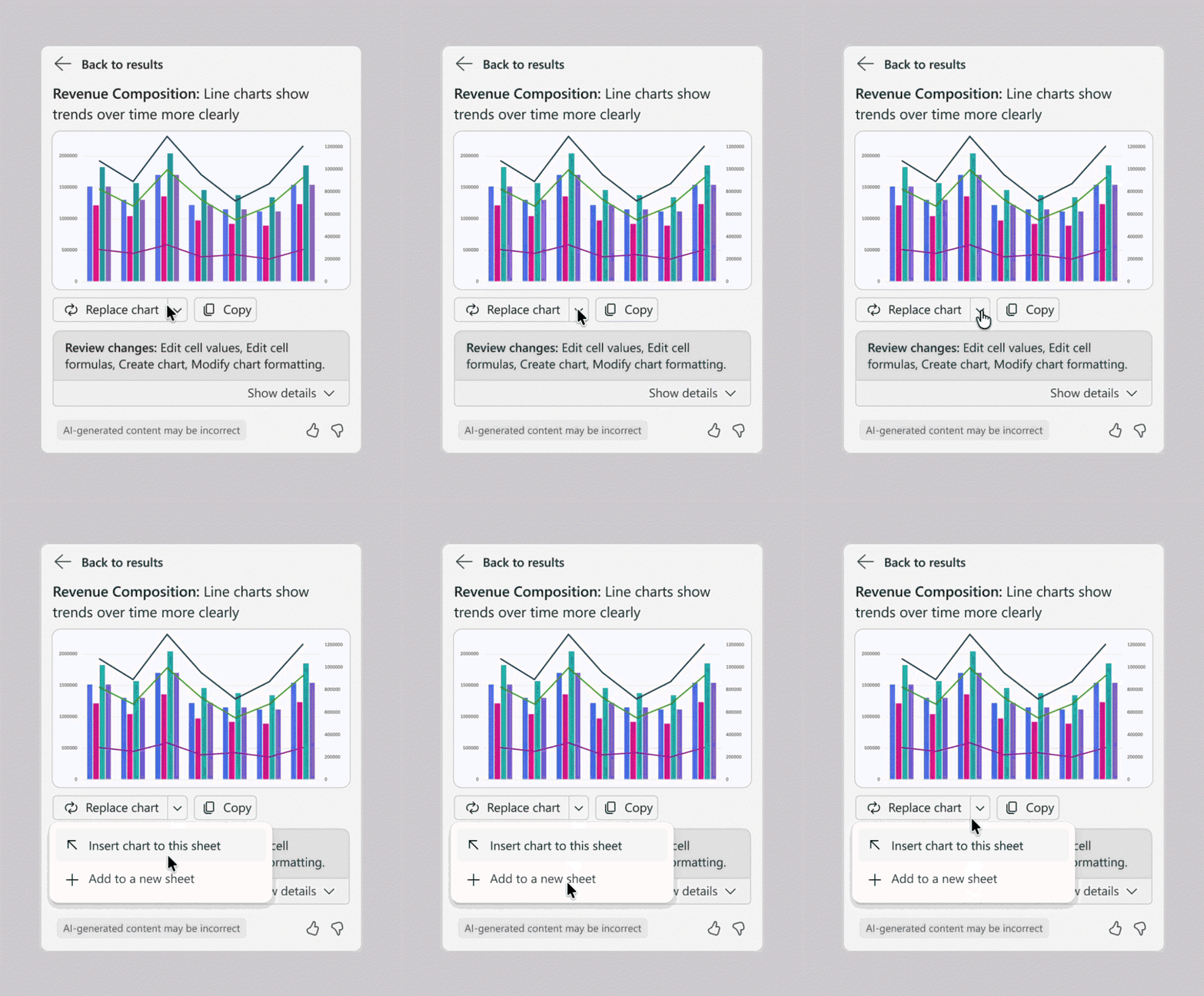
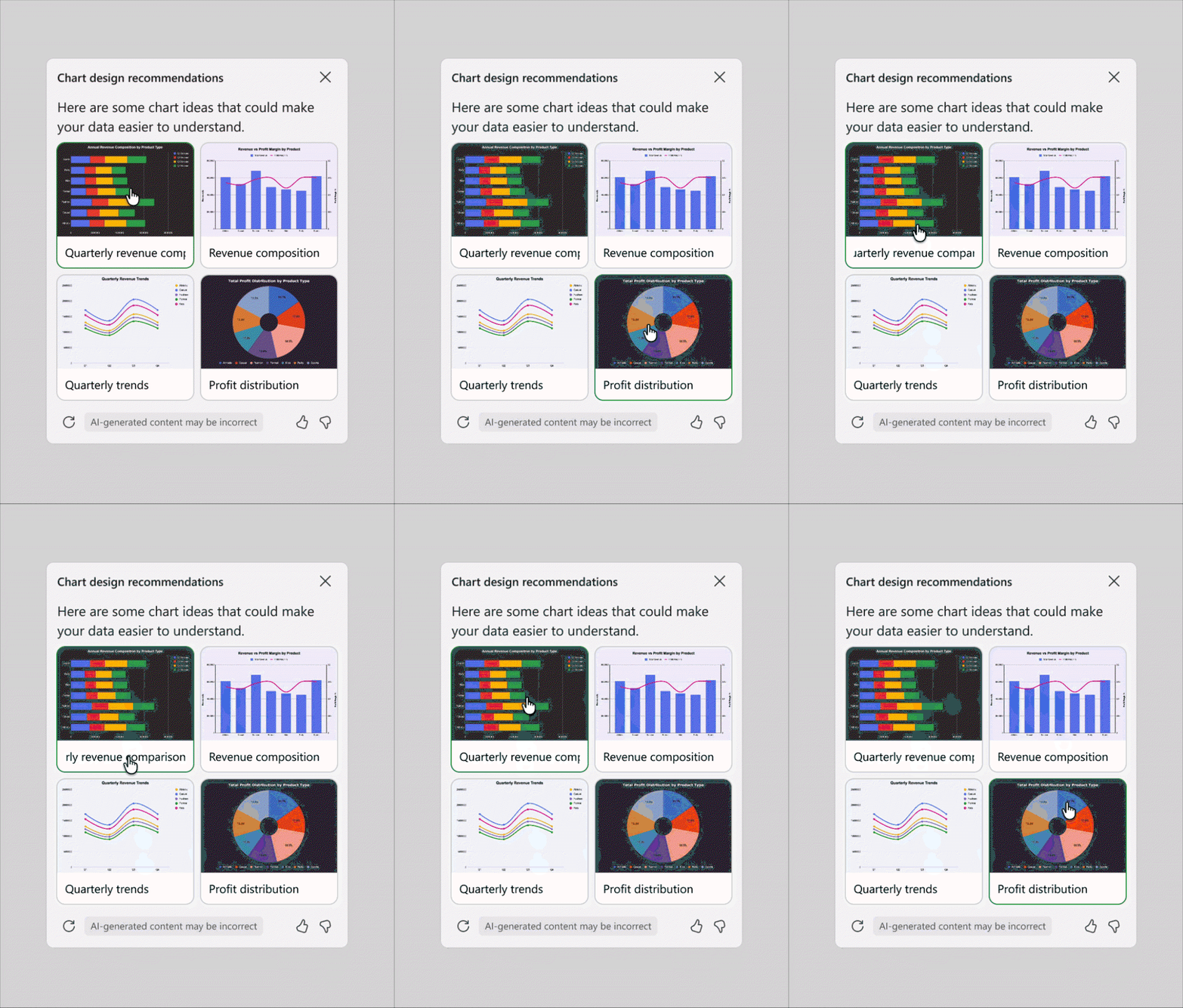
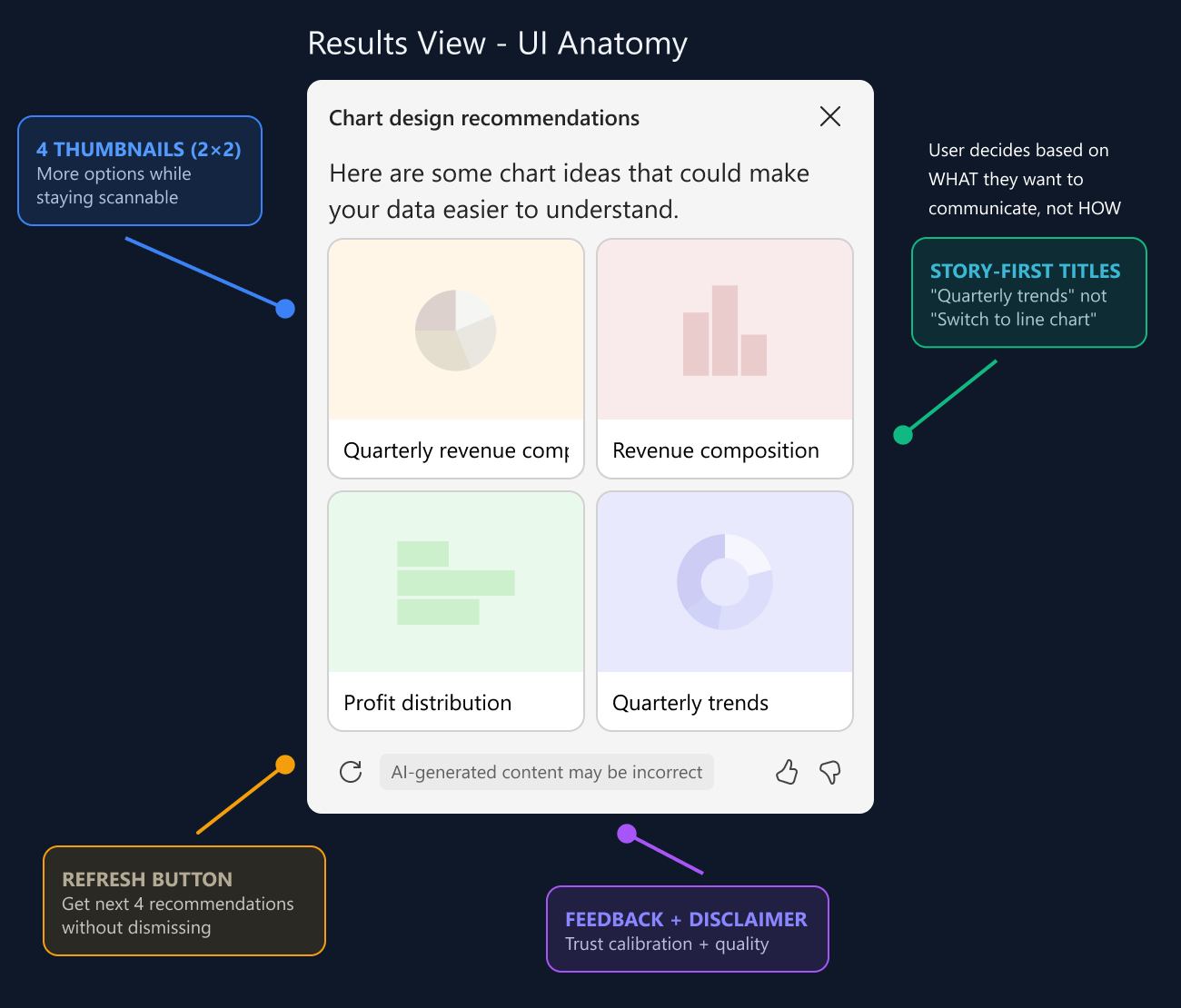
I designed a modular "recommendation card" system that could flexibly present 1-3 recommendations without overwhelming users.
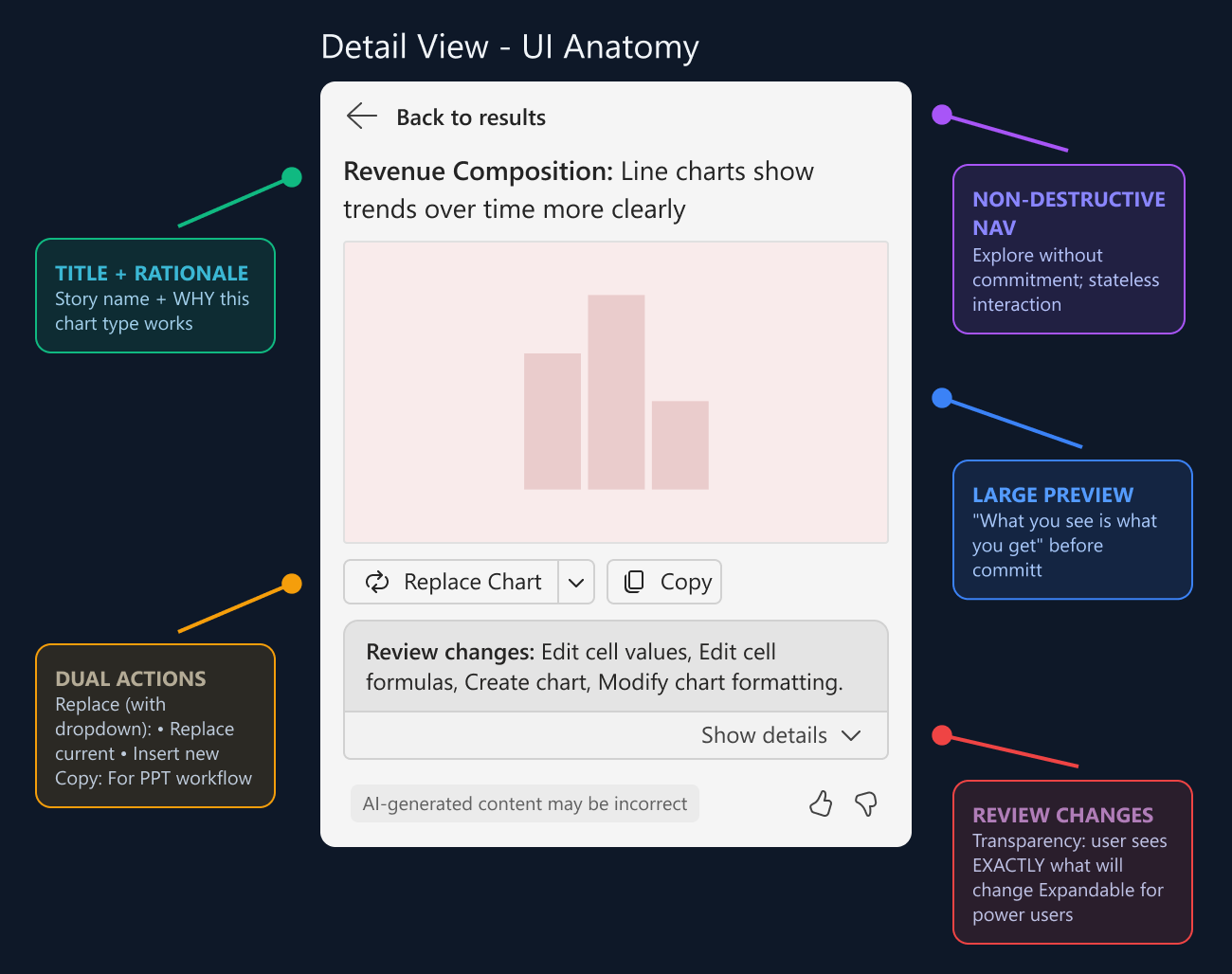
  • Visual preview — Side-by-side before/after thumbnail for instant comparison
  • Plain language title — "Switch to line chart" not "Recommendation 1" for clarity
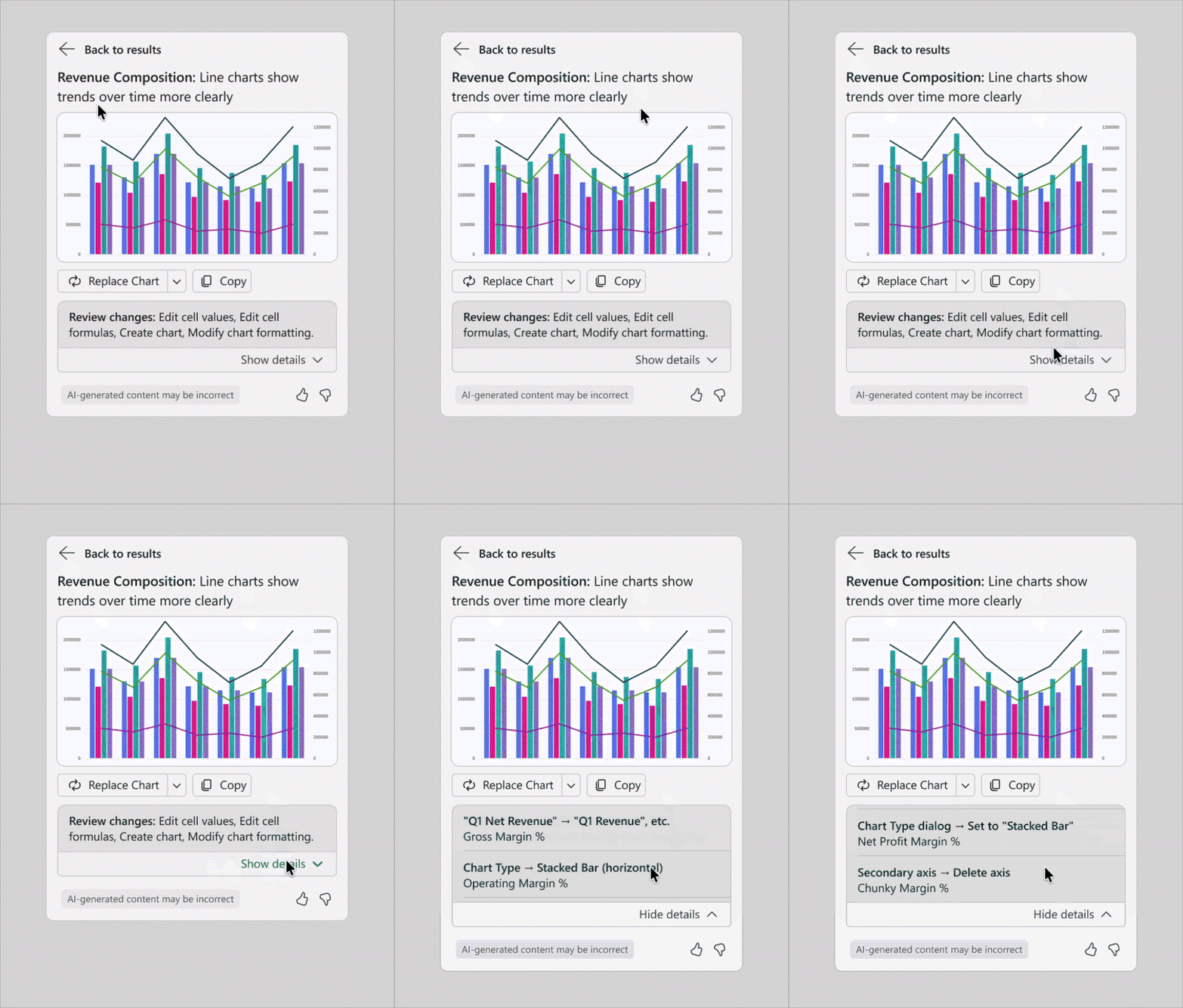
  • Rationale text — "Line charts show trends over time more clearly" to educate users
  • One-click apply — Instant transformation without multi-step confirmation flows
  • Learn more link — For users who want deeper understanding of best practices
  • Stateless interaction — Users can try one, undo, try another without commitment—essential for building trust

Phase 3: LLM Prompt Co-Design

Working closely with the ML team, I co-created prompts that balanced technical capability with user needs for intelligent, contextual recommendations.
  • Analyze data shape — Field types (numeric, date, categorical), cardinality, value ranges
  • Infer user intent — Comparison? Trend? Distribution? Part-to-whole relationship?
  • Generate executable code — Not just suggestions, but chart configurations that work 100% of the time
  • Explain reasoning — Rationale for each recommendation to build understanding
  • Example prompt structure — "Given a chart with [data structure], current type [X], analyze if better visualization exists. Consider: 1) Data relationships, 2) Storytelling intent, 3) Visual clarity. Return top 3 recommendations with executable chart config and brief rationale."
  • Validation layer — ML team built constraints and feasibility checks before surfacing to users
 
 
Example prompt structure:
"Given a chart with [data structure], current type [X], analyze if a better visualization exists. Consider: 1) Data relationships, 2) Storytelling intent, 3) Visual clarity. Return top 3 recommendations with executable chart config and brief rationale."


Key Design Decisions & Trade-offs

Native Charts vs. AI-Generated Images
Choice: Generate NATIVE Excel charts, not PNG images
Why: Editable, data-bound, refreshable. Competitors' AI-generated images look good but can't be tweaked.
Top 1 vs. Top 3 Recommendations
Choice: Show 1-3 recommendations, prioritized by confidence
Why: Balance guidance with choice. 1 felt prescriptive, 5+ overwhelmed. 3 was sweet spot.
 
In-Pane Preview vs. Live Preview
Choice: Thumbnail preview in pane, NOT live chart manipulation on hover
Why: Live preview felt janky/overwhelming. Thumbnails gave control without distraction.
 
Explain Rationale vs. Just Apply
Choice: Always show WHY, not just WHAT to change
Why: Builds user understanding over time. Trust through transparency.


Impact & Results


16.5%

Chart usage among Copilot-enabled users
vs. 8.8% non-Copilot users

34.7

Avg. chart actions per Copilot user
High engagement signal
 
Metric
Before
After
Chart deletion rate (same session)
~40%
<10%
Users who kept recommended changes
N/A
>80%
Chart feature MAU growth (2.5 years)
Baseline
+180%
 
 
Technical Success Metrics (Internal Testing)
✅  100% execution success rate
✅  LLM-generated chart code worked every time in controlled tests
✅  9 mins, 172 clicks saved
✅  Measured against manual chart optimization workflow
✅  All common chart types supported
✅  Column, bar, line, scatter, pie, combo — full MVP coverage
User Testing Insights
👨🏽‍🦱 "This is like having a data viz expert sitting next to me." — Power User
👨🏻 "I learned more about charts from these suggestions than from tutorials." — Novice
👩🏼 "Finally! I don't have to guess if my chart is good." — Intermediate User
Key finding: Users didn't just apply recommendations — they LEARNED from them. Over time, they started making better initial choices.
Strategic Impact
  • Proved AI-native differentiation — Excel is only tool that combines native charts + AI recommendations + editability
  • Unlocked Copilot adoption — Design recommendations were #2 most-used Copilot feature after Insights
  • Elevated Excel's positioning — From 'spreadsheet tool' to 'intelligent design assistant'
  • Foundation for future — Opened door for AI assistance in formatting, tables, and beyond


Key Learnings: Designing for AI Collaboration

What Worked Exceptionally Well
  • Co-designing prompts with ML team — Designer + data scientist collaboration produced better outcomes than either alone
  • Explaining rationale — Educational approach built trust and improved user skill over time
  • Prioritizing native charts — Maintained editability vs. competitors' static AI outputs
  • Modular card pattern — Flexible system that scaled from 1 to N recommendations
Challenges & How We Solved Them
  • LLM sometimes suggested impractical changes — Constraint-based prompts, validation layer before showing to users
  • Preview thumbnails took too long to generate Cached common transformations, optimized rendering pipeline
  • Users wanted to compare multiple recommendations side-by-side Added comparison view in Walk phase (deferred from MVP)
 

The Bigger Lesson for AI Product Design

AI features succeed when they:
  • 1. Augment, don't automate — User stays in control, AI provides options
  • 2. Explain the 'why' — Black box AI breeds mistrust
  • 3. Preserve human creativity — Recommendations, not prescriptions
  • 4. Build expertise over time — Users learn patterns and become less dependent on AI
badge